This article will help you get started with the Cropster API by walking you through the steps to make your first API call.
The Cropster API is an HTTP RPC-style API for integrating with our coffee inventory and production management system. We use the OAuth 2.0 Client Credentials flow for secure, server-to-server communication. This enables your backend to authenticate autonomously, allowing background syncs without user interaction.
All supported API endpoints are described in the official API documentation. Additional endpoint requests can be submitted through the feature request process. The product team values your feedback and reviews every request for potential future updates.
To access the new public RPC API, you will require a new API integration Add-on subscription. Contact us at api@cropster.com to set up the new RCP API subscription plan for your account.
To begin, you need to create a Service Account. A Service Account is a special, non-human identity designed strictly for machine-to-machine authentication.
- Log in to the C-sar platform.
- Navigate to the Gear icon on the top right side of the page and select Account.
- Click API access on the left side of the page.
- Click Add service account.

- Enter the following details:
- Name: Enter a unique and descriptive name to help distinguish this service account from others.
- Scopes: Scopes define which endpoints this service account can access. Click the dropdown and select the scopes required for your integration. For example, to access roasted inventory, select
inventory.roast.
- Click Create service account.
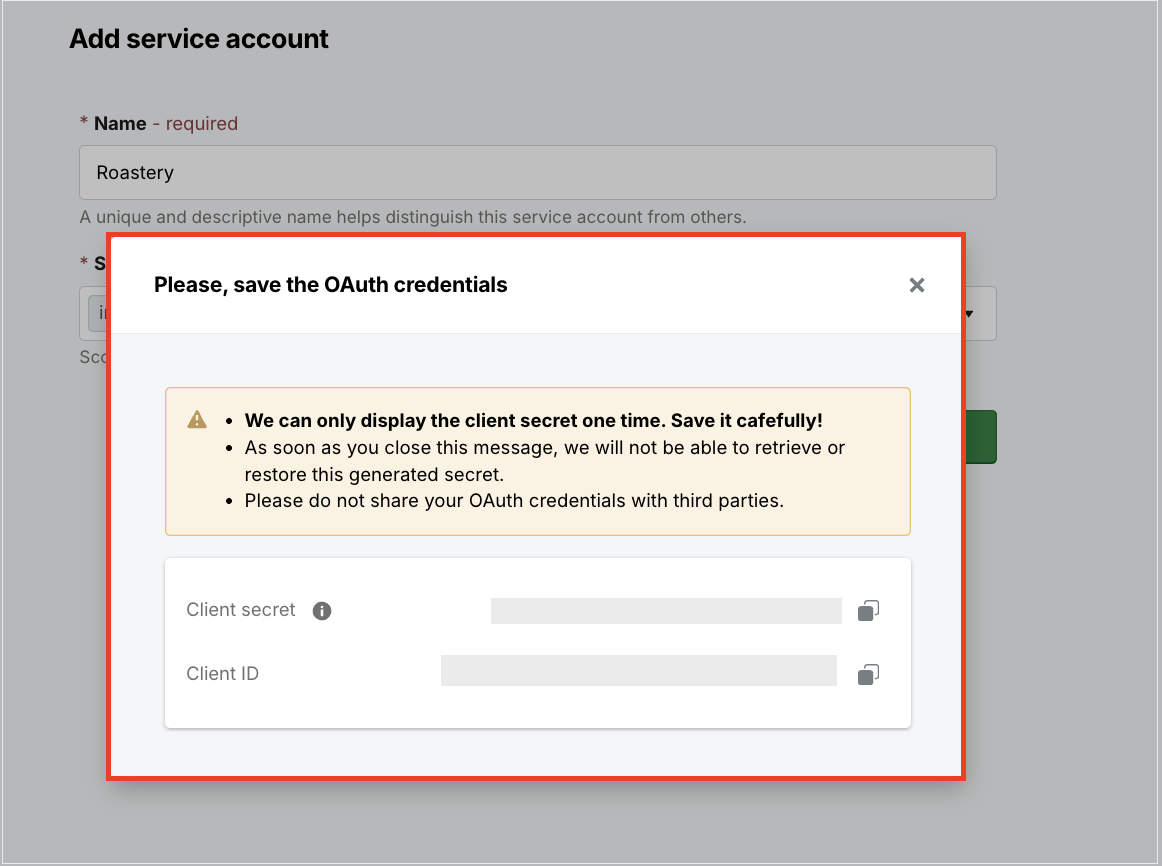
- Upon creation, your Client ID and Client Secret will be displayed.
Your Client Secret is only displayed once upon creation. Store it securely and treat it like a password.
You will now use the Client ID and Client Secret (obtained in Step 1) to retrieve a temporary access token.
Send a POST request to the OAuth2 token endpoint: https://auth.cropster.com/oauth2/token with the Content-Type set to application/x-www-form-urlencoded. The scopes must be URL-encoded and should include all OAuth scopes that are required for subsequent API requests.
https://auth.cropster.com/oauth2/token
- curl
- JavaScript
- Node.js
- Python
- Java
- C#
- PHP
- Go
- Ruby
- R
- Payload
curl -i -X POST \
  https://auth.cropster.com/oauth2/token \
  -H 'Content-Type: application/x-www-form-urlencoded' \
  -d grant_type=client_credentials \
  -d 'client_id=<CLIENT_ID>' \
  -d 'client_secret=<CLIENT_SECRET>' \
  -d scope=inventory.green%20inventory.roast%20inventory.blend
Upon a successful request, the response returns the access token in the field access_token.
The access token is valid for 8 hours. You should cache the token in your application and reuse it until it expires.
You are now ready to access the RPC API. Use the Access Token from the previous step to authenticate your API calls. You must pass it in the Authorization header using the Bearer schema. The following example demonstrates how to pass the Access Token in the Authorization header.
https://api.cropster.com/rpc/v1/inventory.roast.listRoastedLots
- curl
- JavaScript
- Node.js
- Python
- Java
- C#
- PHP
- Go
- Ruby
- R
- Payload
curl -i -X POST \
  https://api.cropster.com/rpc/v1/inventory.roast.listRoastedLots \
  -H 'Authorization: Bearer <YOUR_TOKEN_HERE>' \
  -H 'Content-Type: application/json' \
  -d '{
    "params": {
      "filter": {
        "roastedDate": {
          "from": "2023-10-05T14:48:00Z"
        }
      },
      "pagination": {
        "limit": 20,
        "after": "aBc="
      }
    }
  }'
If the request is successful, the API returns the result in the response body.
If you encounter issues while integrating with the Cropster API, please contact us with the following details to ensure the quickest resolution:
Execution Time: The approximate date and time (including timezone) when you executed the API request.
Error Details: The full error message, status code, or a screenshot of the response.
For complete reference details, including all methods, request parameters, and error codes, please refer to the official Cropster API documentation.